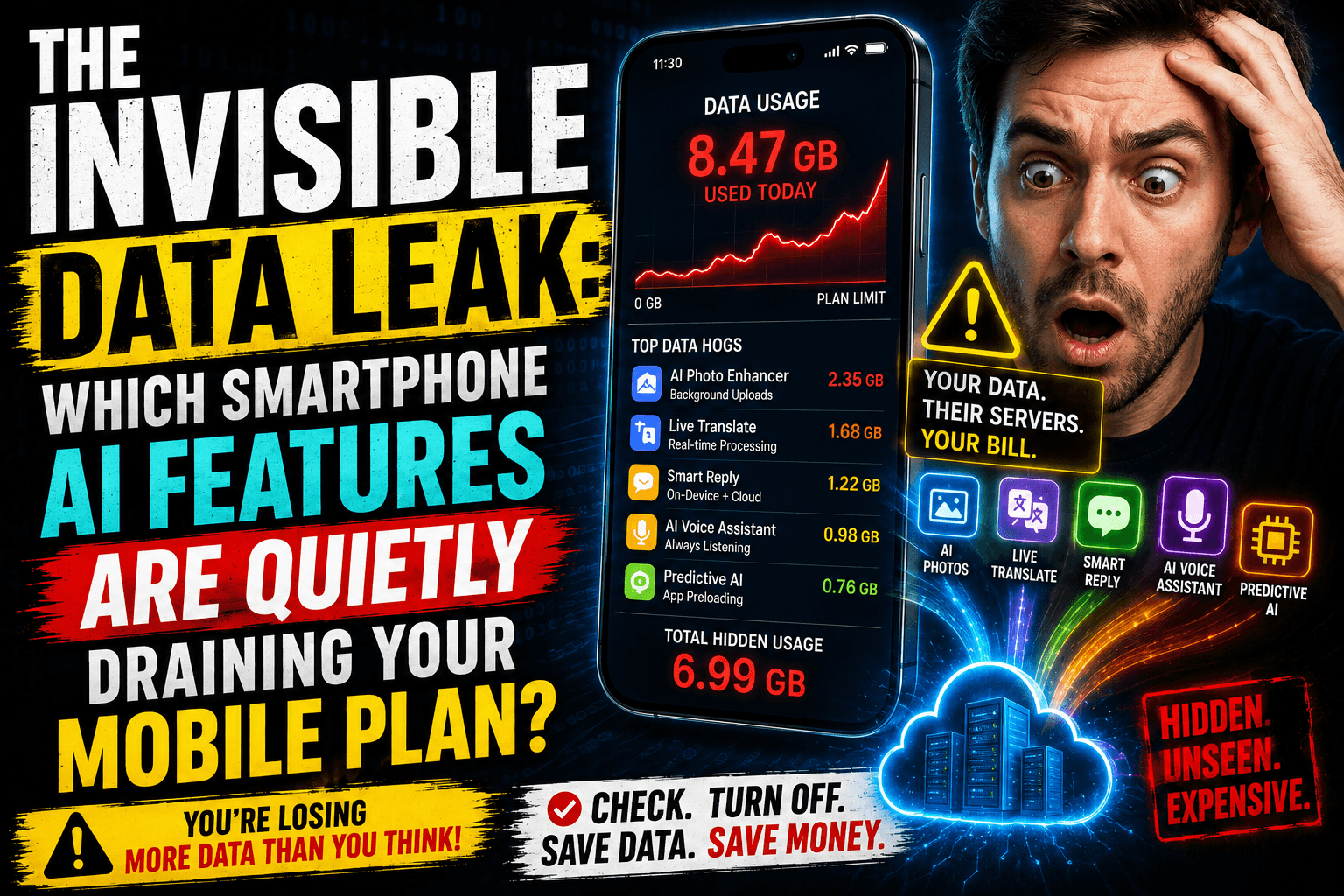
When smartphone manufacturers market the latest “AI-powered” devices, they love to highlight features like real-time video translation, smart object removal, conversational assistants, and automated photo enhancements.
What they rarely mention in the keynote presentation is the hidden operational cost: cellular data consumption.
Unless your phone is explicitly running a local, on-device model, every advanced prompt, object erase, and real-time transcription has to be packaged, encrypted, and beamed to a remote cloud server. If you are using these features away from Wi-Fi, your smartphone AI features are quietly chipping away at your monthly mobile data cap.
The Data Verdict: AI convenience isn’t entirely free. If you are on a metered or limited mobile data plan, treat cloud-based generative AI features exactly like streaming a high-definition video track. Use them intentionally when out and about, or save your complex image generation, audio summaries, and photo edits for when you are safely back on an unmetered Wi-Fi connection.
1. The Data Divide: On-Device vs. Cloud-Dependent AI
To protect your data plan, you have to understand where the actual computational work is happening. Smartphone AI features generally fall into two categories:
[ Local NPU / On-Device AI ] ──► Processes on your phone ──► 0 MB Mobile Data Used
[ Cloud AI / Multimodal ]     ──► Beamed to remote server ──► Massive Data Payload
- On-Device AI (Zero Data Cost): These features utilize the physical NPU (Neural Processing Unit) inside your phone’s processor (like Apple Silicon, Snapdragon, or MediaTek Dimensity). Features like local text predictive typing, basic voice-to-text transcription, and simple on-device photo curation happen locally. They consume battery power, but zero mobile data.
- Cloud-Dependent AI (High Data Cost): Advanced tasks—like conversational reasoning, generating brand-new backgrounds in photos, or processing video frames—require massive enterprise server farms. Your phone uploads your data, the cloud processes it, and streams the result back down to your screen.
2. The Biggest AI Data Hogs on Your Phone
If you are using these features on a cellular connection, here is how much data is silently slipping through your plan:
Generative Photo Expansion & AI Object Removal
- The Culprits: Google Magic Editor, Samsung Generative Edit, Apple Clean Up.
- Data Impact: ~3 MB to 15 MB per edit.
- Why it drains: When you circle a person to erase them from a vacation photo, your phone doesn’t just send the coordinates of that person. To blend the background realistically, it often uploads a compressed, high-resolution copy of the entire image to the cloud, processes the patch, and downloads the newly generated image back to your gallery. Doing this twenty times on a weekend trip can easily vaporize 200+ MB of data.
Cloud-Assisted Audio Transcription & Summarization
- The Culprits: Automated voice note transcribers, AI meeting summarizers.
- Data Impact: ~1 MB to 2 MB per minute of audio.
- Why it drains: If the local model isn’t powerful enough to handle nuanced dialects or multi-speaker formatting, your raw audio file or a heavily compressed audio stream is uploaded to a remote server. A 30-minute recorded lecture, summarized via a cloud-based assistant, can instantly cost you up to 60 MB of background data.
Multimodal Visual Search
- The Culprits: Circle to Search (Visual mode), Google Lens, ChatGPT Voice/Vision.
- Data Impact: ~2 MB to 5 MB per search query.
- Why it drains: Pointing your camera at a building or circling an item on your screen to identify it means your phone must upload a high-quality visual screenshot or a live camera frame to a visual search matrix. If you use visual lookups frequently while exploring a new city on roaming data, the data adds up fast.
3. How to Plug the Leak: Your Mobile Data Action Plan
You don’t need to completely turn off your phone’s smart features to save your data plan. You just need to configure the hardware guardrails.
1 . Enforce ‘On-Device Only ‘ Processing: Settings Overhaul.
Deep inside your phone’s system settings, manufacturers are starting to include privacy and data gates.
- On Samsung devices: Go to Settings > Advanced Features > Advanced Intelligence and toggle on “Process Data Only on Device.” This forces the phone to only use local models, completely blocking background cloud data uploads when you are away from Wi-Fi.
2. Restrict Background App Data: Network Gatekeeping.
Go to your cellular data settings and audit individual app permissions. For dedicated AI client apps (like ChatGPT, Claude, or Gemini), toggle off “Allow Background Data Usage.” This prevents them from performing sync routines, vector indexing, or history updates unless the app is actively open on your screen.
3 . Pre-Download Local Language Packs: Preemptive Loading.
If you use real-time translation features while traveling, open your native translation app (Apple Translate or Google Translate) while connected to home Wi-Fi and manually download the offline language packs. This forces the system to translate text and voice locally via the NPU, dropping your active roaming data cost to zero.