
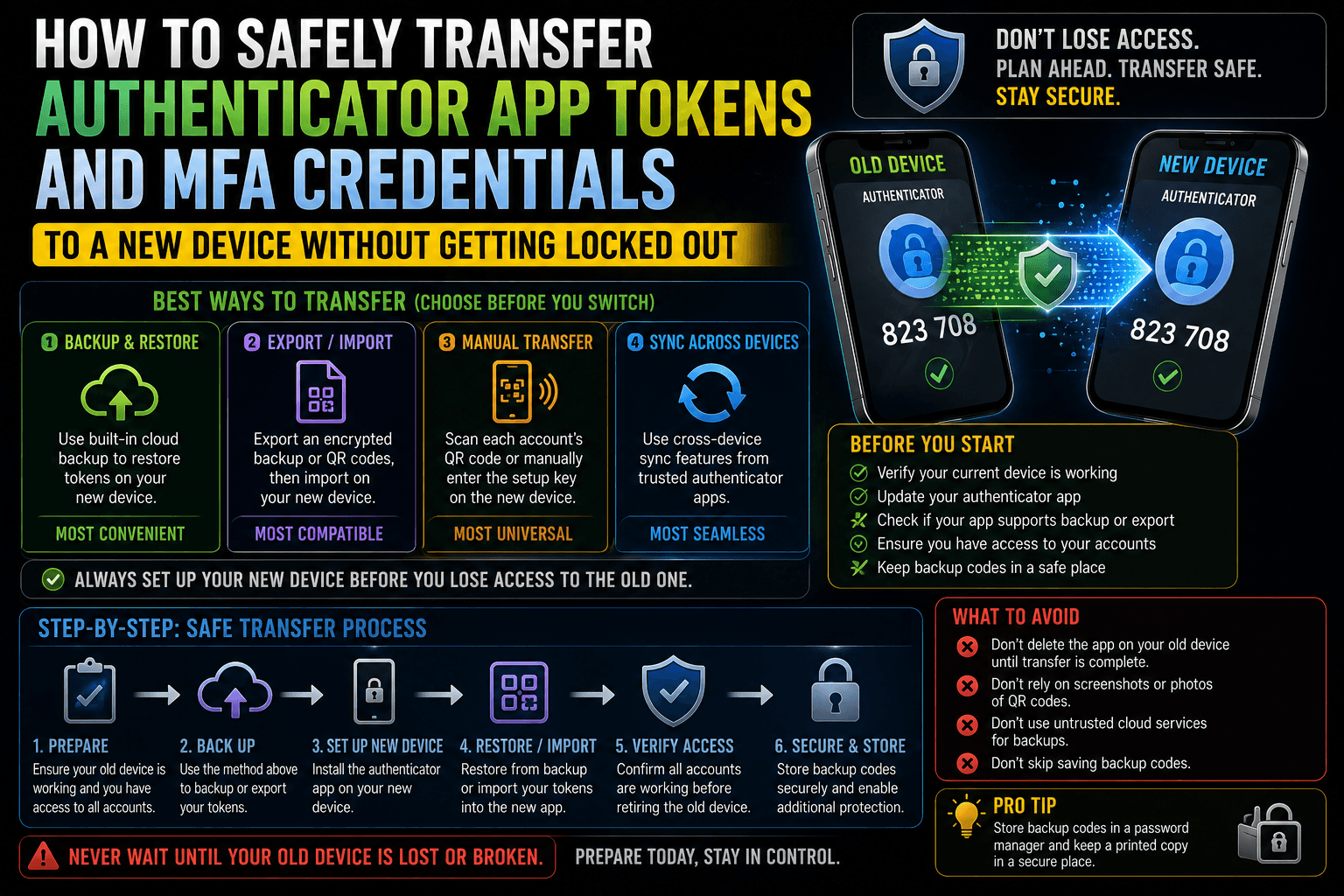
Upgrading to a new smartphone is exciting, but migrating your multi-factor authentication (MFA) setup is a high-stakes task. If you format your old phone before properly offloading your Time-based One-Time Password (TOTP) tokens, you can permanently lock yourself out of your email, financial institutions, and corporate networks.
Most authenticator apps intentionally do not sync automatically via standard phone-to-phone data transfer cables to prevent malware from easily cloning your security keys. To execute a flawless migration without losing access to your accounts, use this step-by-step action plan.
The Golden Rule: The Overlap Window
Never delete, uninstall, or wipe your old device until you have manually verified that the codes on your new device are generating identically and successfully logging you in. Your old device is your physical safety net.
1. How to Transfer Google Authenticator
Google Authenticator offers two paths for migration: a direct, local hardware-to-hardware swap (safest) or an encrypted cloud sync.
Method A: The Local QR Code Export (Recommended)
This offline method transfers all your accounts simultaneously via an encrypted matrix scan.
- On your old phone: Open Google Authenticator, tap the menu icon (three lines or your profile icon), and select Transfer accounts → Export accounts.
- Verify your identity using your device’s biometrics or PIN.
- Select all the accounts you wish to move and tap Next. The app will generate a large, dense QR code on your screen. (Note: If you have a large volume of accounts, it may split them into two sequential QR codes.
- On your new phone: Install Google Authenticator, tap Get Started, and select Import existing accounts at the bottom → Scan QR code.
- Aim your new phone’s camera at the old phone’s screen. The tokens will instantly populate.
Method B: Google Account Cloud Sync
If you prefer a cloud-native backup, you can bind your tokens directly to your Google Identity.
- On your old phone, check the top-right corner of the app. If you see a green cloud icon next to your profile picture, your tokens are actively syncing to your Google Account.
- Download the app on your new phone, sign in to the same Google Account, and your MFA listings will automatically download.
2. How to Transfer Microsoft Authenticator
Microsoft Authenticator handles migration through an isolated cloud recovery file structure rather than a local screen scan.
[Old Phone: Settings] ──► Turn on Cloud Backup ──► Securely Links to Microsoft Account
                                                                  │
                                                                  ▼
[New Phone: App Launch] ──► Select "Begin Recovery" ──► Log into same Account ──► Restores Tokens
- On your old phone: Open the app, tap the three dots or menu icon → Settings.
- Scroll to the Backup section and toggle on Cloud Backup (on Android) or iCloud Backup (on iPhone). Ensure it is linked to your primary personal Microsoft account.
- On your new phone: Install Microsoft Authenticator. Do not click “Add Account” upon opening. 4. Instead, look at the bottom of the welcome screen and tap Begin recovery (or Already have a backup? Sign in). learn.microsoft.com
- Input the credentials of the personal Microsoft account used for the backup. Your tokens will populate on the main screen. learn.microsoft.com
Critical Note for Work/School Accounts: Because of corporate security policies, enterprise and organizational accounts backed up via Microsoft Authenticator will require re-validation. They will appear on your new device with a red exclamation point. You will need to log into your company’s portal on a computer and click “Re-verify device” to reactivate them.
3. How to Transfer Third-Party Apps (Authy, Bitwarden, Proton Pass)
If you use a dedicated platform manager like Twilio Authy or an integrated multi-platform password manager (such as Bitwarden, 1Password, or Proton Pass), the process is tied entirely to account initialization.
- Authy: Install the app on your new device, enter your primary phone number, and verify the installation via an SMS text code or a push notification sent to your old device. Once signed in, you must enter your global Backups Password to decrypt the locally stored tokens.
- Password Managers: Because your TOTP seeds are encrypted directly inside your main password database, simply logging into your password vault on the new device (using your Master Password and Master Passkey) automatically carries your entire MFA library over seamlessly.
4. The Post-Migration Checklist: Verifying Your Safety Net
Before running a factory reset on your old smartphone, execute these safety checks to confirm that the transfer was 100% successful:
Verify the Token Clocks Match
Time synchronization check
1. Verify the Token Clocks Match: Time synchronization check.
Place both phones side by side. Look at the 6-digit strings generated for the same account. The numbers and the countdown timers must match exactly. If the numbers don’t match, go to your new app’s settings and run Time correction for codes to repair internal clock drift.
Perform a Live Authentication Test
Live testing
2. Perform a Live Authentication Test: Live testing.
Sit at a computer and log into a high-priority account (like your primary email). When the site prompts you for an MFA verification token, input the code displayed by your new phone. If it successfully logs you in, that token path is verified.
Locate Non-Exportable Manual Accounts
The hidden trap
3 . Locate Non-Exportable Manual Accounts: The hidden trap.
Check if any accounts failed to transfer. Certain banking app security tokens explicitly forbid cloud or QR cloning. For these legacy exceptions, you must log into the account’s website, navigate to security settings, turn off 2FA, and reactivate it to generate a fresh QR code for your new device.
Download Fresh Backup Recovery Codes
The absolute emergency layer
4. Download Fresh Backup Recovery Codes: The absolute emergency layer.
While updating your primary portals, take 5 minutes to download a fresh set of Offline Backup Codes (alphanumeric recovery strings). Print them out or store them in a physical home safe. If you ever lose your phone completely, these printouts are the only way to bypass 2FA without waiting weeks for corporate security overrides.
Once every code string aligns and you have successfully logged into your primary systems using the new device, it is safe to log out of the apps on your old phone, wipe its storage, and complete your hardware transition.